
Two-factor authentication
Turn it on, and what to do if you lose your phone.
8 Jul 2026 · 3 min read
Your DeluxHost account controls servers, payment methods and billing, so it deserves more than a password. Two-factor authentication (2FA) adds a short code from your phone at login. Even if someone steals your password, they cannot get in without that code.
Turning it on
You will need an authenticator app on your phone. Any standard TOTP app works, such as Google Authenticator, Microsoft Authenticator, Aegis, 2FAS or the one built into your password manager.
- Open the user menu in the bottom left and choose Profile.
- Find the Two-factor authentication section and press Enable.
- Scan the QR code with your authenticator app.
- Type the 6 digit code the app shows to confirm everything works.
- Download or copy your recovery codes and store them somewhere safe.
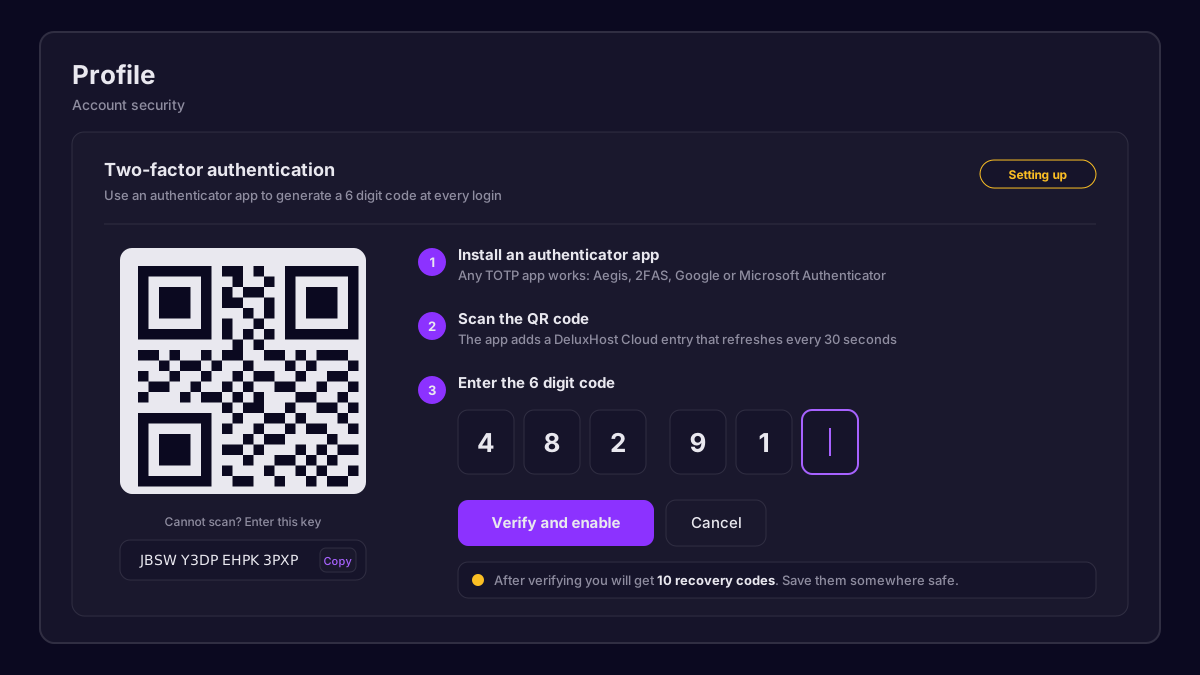 The two-factor setup screen with a QR code and code input
From now on, every login asks for a fresh code after your password.
Tip: Save your recovery codes in a password manager or print them and keep them with your important documents. They are the only way back in if you lose your phone and do not have a backup.
Recovery codes explained
When you enable 2FA we generate a set of single use recovery codes. Each code works once, in place of the code from your app. Keep in mind:
- Each code can be used only one time.
- You can generate a fresh set from Profile at any time, which invalidates the old ones.
- Do not store them only on the same phone as your authenticator app.
If you lose your phone
Do not panic. Depending on what you still have, pick the matching path:
- You have your recovery codes: log in with your password, choose "Use a recovery code" and enter one. Then go to Profile, disable 2FA, and enable it again with your new phone.
- Your authenticator app syncs to the cloud: install the app on your new phone and sign in. Your codes come back automatically.
- You have nothing: open a ticket from Support using the email address on your account. For security we need to verify your identity before removing 2FA, which can take a little time.
Moving to a new phone
If you still have the old phone, the move is easy. Most authenticator apps have a transfer or export feature. Alternatively, go to Profile, disable 2FA using a code from the old phone, then enable it again and scan the new QR code with the new phone.
Troubleshooting codes that do not work
The most common cause is the time on your phone. TOTP codes depend on the clock, and a phone that is even a minute off will produce codes that are rejected.
- Make sure your phone uses automatic date and time.
- In Google Authenticator on Android, use the time correction option in settings.
- Wait for a fresh code instead of typing one that is about to expire.
If codes still fail after fixing the clock, use a recovery code and set up 2FA again from scratch.
Our team answers within minutes, 24/7.