
Attack reports land in Firewall
See every mitigated attack with its peak, vectors and ports.
28 Sept 2026 · 3 min read
Until now, our DDoS protection worked quietly in the background and you mostly had to take our word for it. Starting today, every attack we mitigate on your IPs shows up in the panel, with the numbers that matter. Open Firewall from the sidebar and select the new Attacks tab.
What you see in the Attacks tab
Each row is one attack, newest first. For every attack you get:
- Target IP and the server it belongs to.
- Start time and duration, in your own timezone.
- Peak in both bits per second and packets per second.
- Vectors, such as UDP flood, SYN flood or DNS amplification.
- Ports that were hit the hardest.
- Status: ongoing or mitigated.
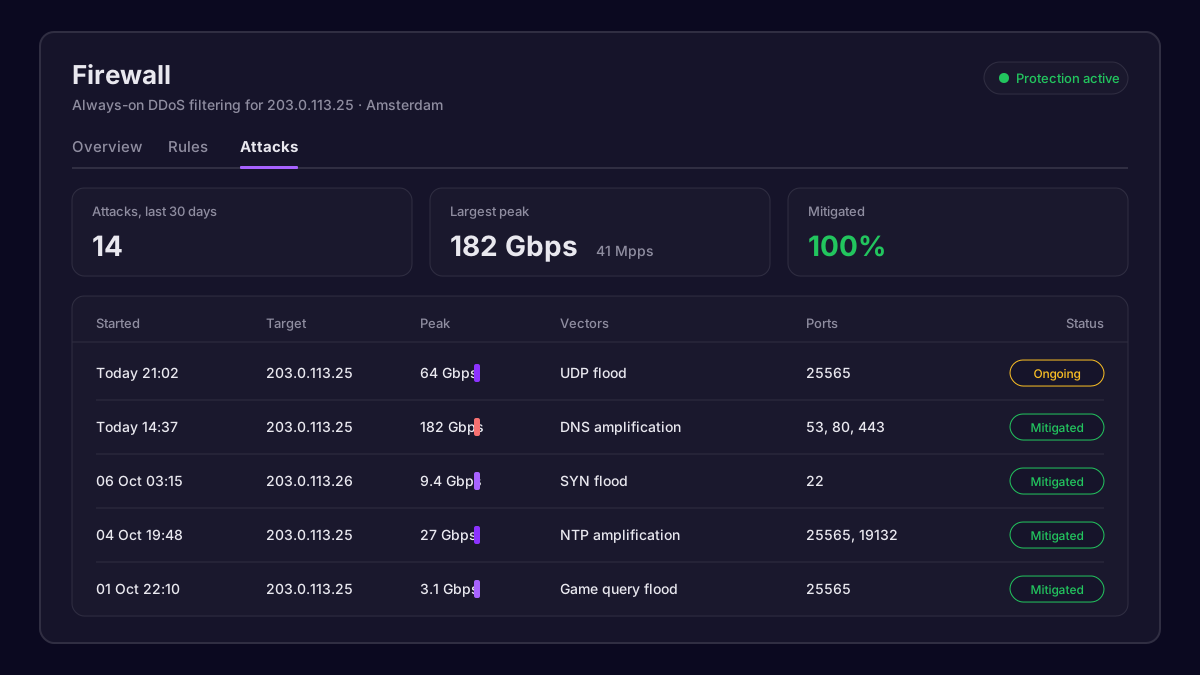 The Attacks tab with a list of mitigated attacks and their peaks
Click any row to open the details: a traffic graph of the attack, how much was dropped versus passed through, and the top source networks.
Reading the numbers
| Field | What it tells you |
|---|---|
| Peak Gbps | How much bandwidth the attack tried to use |
| Peak Mpps | How many packets per second hit the edge; high pps stresses routers more than raw bandwidth |
| Vectors | The techniques used, useful for tuning your own rules |
| Top ports | Which services the attacker was aiming at |
| Passed traffic | Legitimate traffic that still reached your server |
A high bandwidth attack with low packet rate usually means large amplification packets. A low bandwidth attack with a very high packet rate means small packets, like a SYN flood.
Tip: If the same port shows up in attack after attack and you do not actually use it, add a drop rule for it in the Rules tab. Less open surface means less to aim at.
Turning reports into rules
The Attacks tab and the Rules tab work well together. A practical flow:
- Look at the Top ports for recent attacks.
- Compare them with the ports your services actually need.
- In Rules, allow the ports you use and drop everything else.
- Watch the next few reports: passed traffic toward unused ports should drop to zero.
allow  tcp  443    from any
allow  tcp  22     from 198.51.100.7
drop   udp  any    from any
Notifications
By default we email you when an attack on one of your IPs lasts longer than a few minutes. You can change this from the Overview tab in Firewall: turn notifications off, or get one for every attack regardless of duration.
Sharing a report with support
If an attack affected your service, open it in the Attacks tab and copy the attack ID shown at the top. Then go to Support, press Open ticket and paste it in. Our network team sees exactly the same data you do, so there is no need to explain the timeline from scratch.
The Attacks tab is available now for every server in Amsterdam, Frankfurt and Eygelshoven, with history going back 30 days.
Our team answers within minutes, 24/7.