
My server is not reachable
What to check before opening a ticket when SSH or RDP stops answering.
10 Feb 2026 · 3 min read
When SSH or RDP suddenly stops answering, it is tempting to open a ticket straight away. Most of the time the cause is something you can spot in a couple of minutes from the panel. Run through the checks below first: if the problem is on our side, you will also have everything our team needs to fix it faster.
Start with the service page
Open the server from your dashboard and look at the Overview tab. The status badge tells you whether the machine is running, stopped or still provisioning.
- Stopped: press Start in the Controls card and wait about a minute before trying again.
- Running but unresponsive: check the Usage tab. A CPU stuck at 100% or RAM completely full can make the server look dead even though it is technically on.
- Suspended: check the Billing tab for an unpaid invoice. Services are paused, not deleted, when a payment is overdue.
Look at the screen with VNC
The VNC console in the Controls card shows you the server's real screen, even when the network is completely down. If you see a login prompt, the OS is alive and the problem is almost certainly networking or a firewall. If you see a kernel panic, a stuck boot or a Windows update screen, you have found your answer.
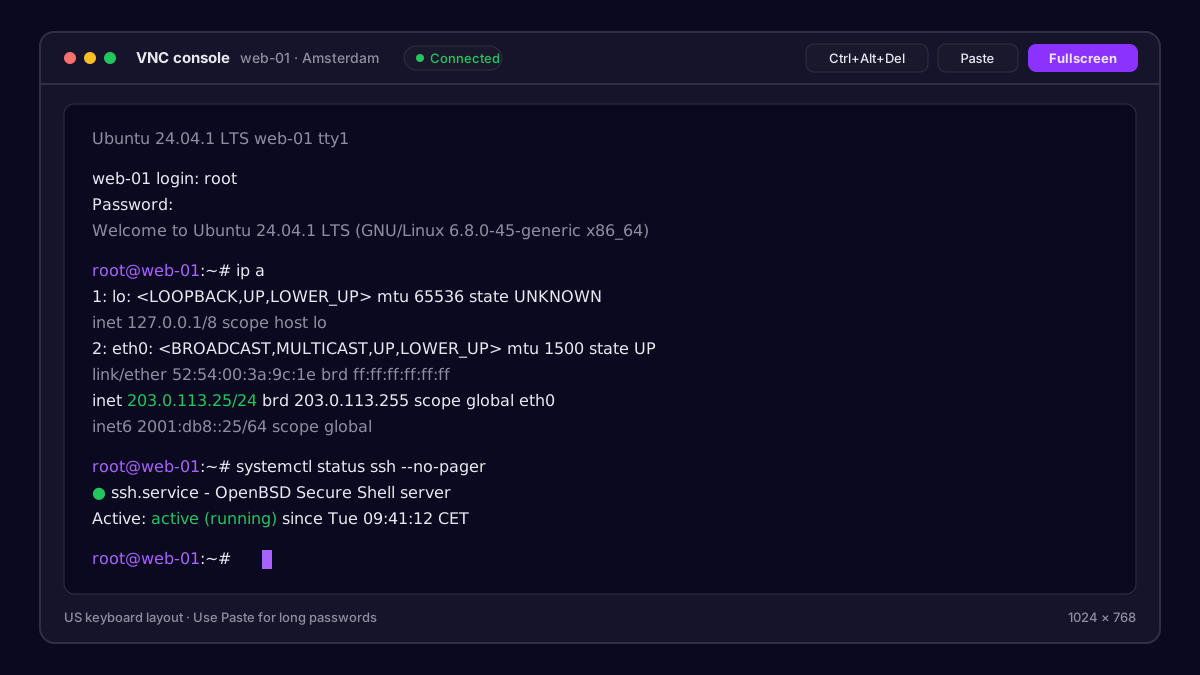 The VNC console open on a Linux server login prompt
Tip: Log in through VNC and run
ip a(Linux) oripconfig(Windows). If your public IP is missing, the network config was changed, often by a package update or a manual edit gone wrong.
Rule out your own firewall
A very common cause is a local firewall rule that locks you out. From the VNC console you can check it quickly:
sudo ufw status verbose
sudo iptables -L -n --line-numbers
On Windows, open Windows Defender Firewall with Advanced Security and confirm the inbound rule for port 3389 is enabled.
Also open the Firewall page in the panel and check the Rules tab. A rule that drops port 22 or 3389 will block you before traffic ever reaches the server.
Quick reference
| Symptom | Likely cause | First action |
|---|---|---|
| Ping works, SSH times out | Local firewall or sshd stopped | Check ufw and systemctl status ssh from VNC |
| Nothing answers, status Running | Network config or full resources | Open VNC, check ip a and Usage |
| Status Stopped | Crash or power off | Press Start in the Controls card |
| Status Suspended | Overdue invoice | Pay it from the Billing tab |
| Only you cannot connect | Your ISP or local network | Test from a phone hotspot |
Test from somewhere else
Try connecting from a different network, like your phone's hotspot. If it works there, the problem is on the route between your ISP and us: see our guide on high latency and packet loss to collect an MTR report.
When to open a ticket
If the server is running, VNC shows a healthy login prompt, your firewall is open and it still cannot be reached from multiple networks, go to Support and press Open ticket. Include:
- The server name or IP address.
- When it stopped working, as precisely as you can.
- What you already checked from this list.
- A screenshot of the VNC console, if anything looks odd.
That way our team can skip the first round of questions.
Our team answers within minutes, 24/7.