
Use the VNC console
Reach your server even when the network is down.
18 Feb 2026 · 3 min read
The VNC console is your emergency door into a server. It shows the machine's real screen and keyboard, exactly as if you were standing in front of it in the datacenter, so it keeps working when SSH, RDP or the whole network stack is down. If you only learn one recovery tool in the panel, make it this one.
Opening the console
Go to your server's page and find the Controls card. Press VNC console and a new window opens with a live view of the screen. There is nothing to install and no port to open: the connection runs through the panel, not through your server's public IP.
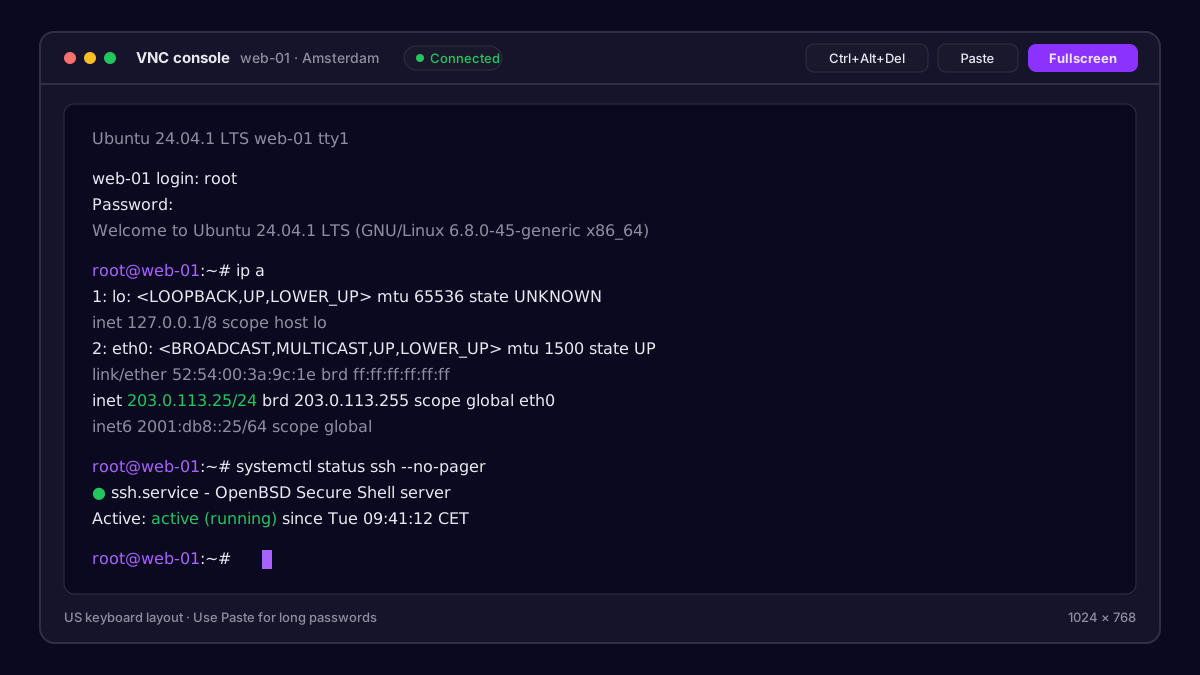 The VNC console showing a server login prompt
You will see one of these:
- A login prompt: the operating system is running. Log in with your root or Administrator credentials.
- A boot screen or GRUB menu: the server is restarting or waiting for a choice.
- A black screen: the display may simply be asleep. Click inside the window and press a key.
Typing and pasting
The console sends keystrokes one by one, so some things behave differently from a normal terminal:
- Keyboard layout: the console uses a US layout. If symbols like
@or|come out wrong, that is why. - Paste: use the paste button in the console toolbar rather than your usual shortcut. Long passwords are easier to paste than to type.
- Special keys: use the toolbar to send
Ctrl+Alt+Delto a Windows server, since your own computer will intercept that combination.
Tip: If your password contains unusual symbols and login keeps failing, reset it to something simpler from the panel, log in through VNC, then change it back with
passwdonce you are in.
Fixing the network from VNC
The most common reason to open the console is a broken network. Once logged in, check whether your interface still has its address:
ip a
ip route
cat /etc/netplan/*.yaml
If you changed a config file and lost access, revert it and apply the change:
sudo netplan apply
sudo systemctl restart networking
On Windows, open PowerShell and check the adapter:
Get-NetIPAddress -AddressFamily IPv4
Get-NetFirewallRule -DisplayName "*Remote Desktop*" | Select DisplayName, Enabled
Recovering from a bad boot
If the server is stuck in a boot loop, press Restart in the Controls card while the console is open. You will see the boot process from the very first second, which lets you pick an older kernel in the GRUB menu or read the exact error that stops startup.
When VNC is not enough
The console is great for fixing configuration, but it cannot save a disk that is truly broken. If the OS no longer boots at all and you do not need the data, the cleanest path is a fresh install from the Advanced tab. If you do need the data, open a ticket from Support before you reinstall, and mention what you saw on the console screen.
Our team answers within minutes, 24/7.